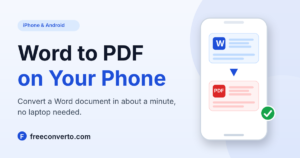
You do not need a laptop, and you do not even need Microsoft Word, to turn a Word document into a PDF. Your phone can do it in under a minute. There are three free ways to convert Word to PDF on your phone, on both Android and iPhone, and the best one depends on what you already have installed.
This guide walks through each method in plain steps, explains why formatting sometimes changes during conversion, and shows how to fix the most common problems.
Which method should you use?
| Method | Best if you… | Needs an app? | Formatting accuracy |
|---|---|---|---|
| 1. Word app | Already have the Microsoft Word app on your phone | Yes (Word) | Highest, because it is the original program |
| 2. Google Docs | Use Gmail or Google Drive | Yes (Docs or Drive) | Good for most documents |
| 3. Online converter No app | Have nothing installed and want the quickest route | No, it works in your browser | Good for standard documents |
Convert Word to PDF on Android or iPhone with the Word app
If the Microsoft Word app is on your phone, it can save any document as a PDF with the layout exactly as you made it. Menu names can differ slightly between versions, but the steps look like this:
- Open the document in the Word app.
- Tap the File icon or the three dots menu.
- Choose Export or Save as, then pick PDF.
- Choose where to save it, such as your phone, OneDrive or Files, and confirm.
Convert a Word file to PDF using Google Docs
Google Docs opens .docx files and can save them as PDF. This is handy if your file arrived by email or sits in Google Drive.
- Open the Word file in the Google Docs app (or upload it to Google Drive and open it from there).
- Tap the three dots, then Share & export.
- Choose Save as and select PDF document.
- Save the PDF to your phone, or share it straight from the same menu.
Convert Word to PDF free online, without installing anything
This is the quickest way if you have no extra apps. It works in Chrome or Safari on any phone:
- Open freeconverto.com in your phone’s browser and choose Word to PDF from the PDF Tools menu.
- Tap the upload area and pick your .doc or .docx file from your phone or Files app.
- Start the conversion and wait a few seconds.
- Download the PDF, then open it and scroll through to check it before you send it.
It is free, with no sign-up and no watermark. As with any online tool, read the privacy note on the tool page before uploading a document with private details.
Why does formatting change when you convert Word to PDF?
A Word file is a set of instructions, and the app that opens it decides how to draw the page. If the app is not Word itself, it may not have the same fonts or handle the same layout features. A PDF, by contrast, is a fixed picture of the page. The change usually happens at the moment of conversion. Three things cause most problems:
- Missing fonts. If a font is not installed, another one takes its place and text can move to the next line.
- Complex layouts. Text boxes, columns, floating pictures and fancy tables are the first things to shift.
- Page size and margins. A document set to Letter size may reflow when the converter assumes A4.
1. Use common fonts such as Arial, Calibri or Times New Roman.
2. Make sure pictures sit “in line with text”, not floating.
3. Check that the page size matches where it will be used.
4. Save the document first so no edits are lost.
Problems and fixes (tap to open)
The text or layout moved in my PDF
The fonts look different
My pictures are missing or in the wrong place
The file will not upload
The PDF opens blank or garbled
My phone cannot open .docx files at all
Frequently asked questions
How do I convert a Word document to PDF on my phone for free?
Use the Word app’s Export or Save as PDF option, Google Docs’ Save as PDF option, or a free online converter in your browser. All three cost nothing, and the online converter needs no app.
How do I convert Word to PDF on an iPhone?
Open the document in the Word app and export it as PDF, or open freeconverto.com in Safari, choose Word to PDF, upload the file, and download the result to the Files app.
How do I convert Word to PDF on Android?
Open the file in the Word or Google Docs app and save it as PDF, or use a free converter in Chrome. Android’s Files app can then show you where the PDF was saved.
Can I convert Word to PDF without losing formatting?
Usually yes, especially with the Word app itself. To keep your layout safe, use common fonts, keep pictures in line with the text, and check the PDF before you send it.
Why does my PDF look different from my Word file?
The most common causes are missing fonts, complex layouts such as text boxes, and different page sizes. Simplify the document and convert it again.
Is it safe to convert Word to PDF online?
For everyday documents it is generally fine, but it depends on the website. Read the privacy note first, and avoid uploading documents with passwords, ID numbers or other private details to any tool you do not trust.
Can I convert a .doc file as well as .docx?
Yes. Both the older .doc and the newer .docx formats can be converted to PDF. If a tool refuses a .doc file, open it in Word or Google Docs, save it as .docx, and try again.
Ready to make your PDF?
Upload your Word file and get a PDF in a few taps. Free, with no sign-up and no watermark.