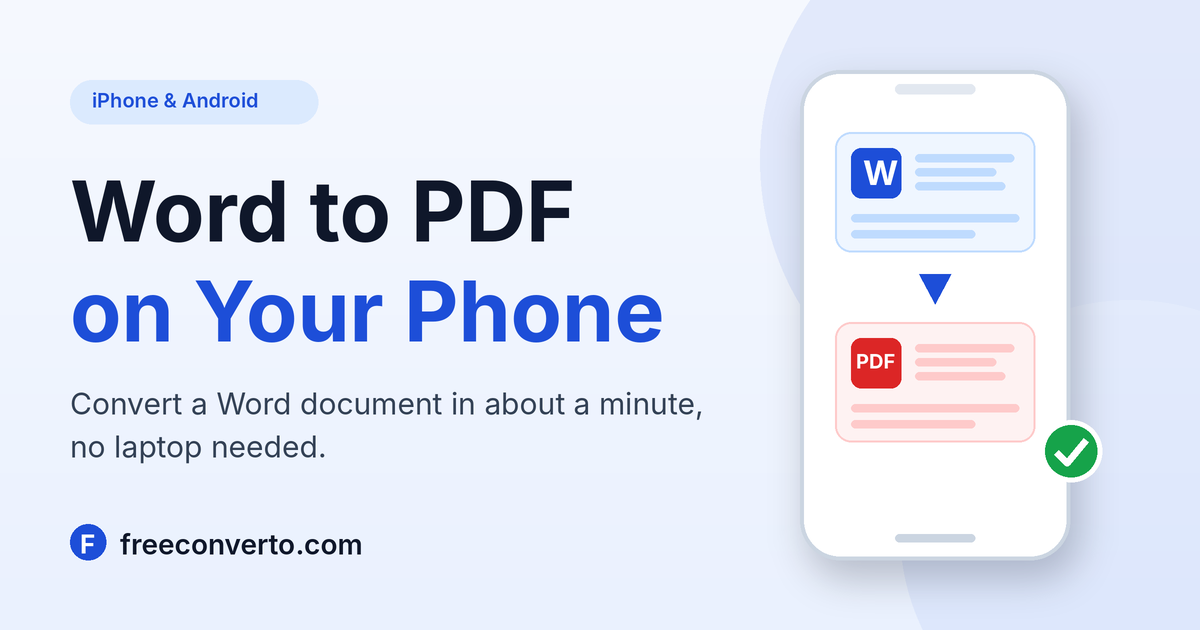
Picture this. A hiring manager, a teacher or a client just asked you for a PDF. What you have is a Word file, and the only thing within reach is your phone. Take a breath. You can sort this out in about a minute, and you do not need a laptop.
Below you will find the simplest ways to convert a Word document to PDF on your phone, on iPhone and on Android, with an app and without one. I have also added fixes for the things that usually go wrong, like text that jumps to the next page or a file that will not send.
Last updated: November 19, 2026
Pick the route that fits your phone
| Your situation | Best route | App needed? | Rough time |
|---|---|---|---|
| I have no apps installed Fastest | Browser converter | No | About 1 minute |
| I am on iPhone and use Word | Word app, Export to PDF | Yes (Word) | Under 1 minute |
| I am on iPhone with nothing installed | Files app and Print trick | No | About 1 minute |
| I am on Android and use Google Docs | Docs, Print, Save as PDF | Yes (Docs) | About 1 minute |
How to convert Word to PDF on your phone without installing an app
This works the same on iPhone and Android, because it runs in Safari or Chrome. It is the route I would pick if I were in a hurry.
- Open freeconverto.com in your phone’s browser and go to the Word to PDF converter.
- Tap the upload area and choose your .doc or .docx file from your phone, your Downloads or your Files app.
- Start the conversion and give it a few seconds.
- Download the PDF, open it, and scroll through every page before you send it.
It is free and there is no sign-up. If your document has private details in it, have a quick look at the privacy note on the tool page first, as you would with any online tool.
iPhoneHow to save a Word document as PDF on an iPhone
If you have the Word app
- Open your document in the Word app.
- Tap the three dots or the File option.
- Choose Export, then PDF.
- Save it to Files, or share it straight to Mail or WhatsApp.
If you have no app at all
Your iPhone has a hidden PDF maker built in. It is a little fiddly, so the browser method above is easier, but it works offline.
- Open the Files app and tap your Word document to preview it.
- Tap the Share icon, then choose Print.
- On the page preview, pinch outward with two fingers. The preview turns into a PDF.
- Tap Share again and pick Save to Files.
How to save a .docx file as PDF on Android for free
Most Android phones already have Google Docs, and it can turn a Word file into a PDF using the phone’s own print menu.
- Open the Word file in the Google Docs app. You can also upload it to Google Drive and open it from there.
- Tap the three dots at the top, then Share & export.
- Tap Print.
- At the top, change the printer to Save as PDF, then tap the PDF button and choose where to save it.
If you would rather not open Docs at all, the browser method near the top of this guide works just as well on Android.
How to send your Word file as a PDF on WhatsApp or email
Sending the PDF instead of the Word file is a good habit. The layout stays put, nobody can change it by accident, and it opens on almost any device. Once your PDF is saved, it is just a normal file:
- Find the PDF in your Files app (iPhone) or Files / Downloads (Android).
- Tap it, then use Share and pick WhatsApp, Gmail, Mail or whichever app you want.
- Or open your email or chat first, tap the paperclip or attach icon, and choose the PDF from the list.
1. Scroll through every page and make sure nothing has shifted.
2. Check your name, phone number and email at the top.
3. Rename the file to something clear, like Your-Name-CV.pdf.
4. If it is too big to email, shrink the pictures first with the image compressor and convert again.
Why does my PDF look different from my Word file?
A Word file is really a set of instructions, and the app that opens it decides how to draw the page. A PDF is a frozen picture of that page. So if the app that makes the PDF does not have your font, or does not understand a fancy layout, things can move. The three usual suspects are:
- Unusual fonts. A missing font gets swapped for another one, and a line can suddenly wrap.
- Text boxes and floating pictures. These are the first things to slide around.
- Page size. Letter and A4 are slightly different, so a page can reflow.
The easy fix is to stick to common fonts like Arial, Calibri or Times New Roman, and to set pictures to “in line with text” before you convert.
Common problems and quick fixes (tap to open)
The text moved to a different page
My pictures are missing or in the wrong place
The file will not upload
My phone cannot open the .docx file at all
I cannot find the PDF after converting
The PDF opens blank or looks garbled
Frequently asked questions
How do I convert a Word document to PDF on my phone without an app?
Open a free online converter in Chrome or Safari, upload your .docx file, convert it, and download the PDF. Nothing needs to be installed.
How do I save a Word document as PDF on an iPhone?
Use the Word app’s Export to PDF option, or open the file in the Files app, tap Share, then Print, pinch the preview to turn it into a PDF, and save it. A browser converter in Safari also works.
How do I convert a .docx file to PDF on Android for free?
Open the file in Google Docs, tap Share & export, then Print, and choose Save as PDF. Or use a free browser converter in Chrome.
Can I convert Word to PDF on my phone without losing formatting?
Usually, yes. Plain documents convert cleanly. To protect your layout, use common fonts, keep pictures in line with the text, and look over the PDF before you send it.
Can I send a Word document as a PDF on WhatsApp?
Yes. Convert it first, then open WhatsApp, tap the attach icon, choose Document, and pick the PDF. You can also share it to WhatsApp straight from your Files app.
Can I turn the PDF back into a Word file later?
Yes. If you need to edit it again, try the PDF to Word converter.
Ready to make your PDF?
Pick your Word file, convert it, and download the PDF from your phone. It is free, with no sign-up.